Two of the three have a free plan. OpusClip and Vizard both give you 60 credits a month with watermarked exports, and OpusClip exports at up to 1080p while Vizard stops at 720p. Submagic has no free plan at all, only a trial that lets you upload and edit 3 short videos before you have to pay for watermark-free downloads.
We compared the free tiers using each company's own pricing page. The free plans are good for finding out whether automatic clipping suits your content, and each one draws the line in a slightly different place. The sections below cover what you get, what you give up, and which tool makes sense for which kind of creator.
How these tools work, and where free plans pinch
All three sit in the same corner of the market. You give the tool a video, and it helps you turn it into short vertical clips for TikTok, Reels or Shorts. OpusClip and Vizard are built around taking a long recording, such as a podcast episode, a webinar or a stream, and cutting it into short pieces. Submagic describes itself as an AI editor for short-form videos, with auto captions, zooms and b-roll.
The free plans restrict roughly the same things: how much you can process each month, the quality of the export, whether a watermark is added and how long your clips are kept. Those four limits decide whether a free plan is a real publishing tool for you or only a test drive, so they are what we compare below.
OpusClip
Free plan
The OpusClip free plan is listed as free forever and includes:
- 60 credits per month
- exports up to 1080p, with a watermark
- no editing
- clips that stay exportable for 3 days
The "no editing" line is the one to think about. On the free plan you take the clips largely as the AI produced them. If a clip starts a second too late or the caption misses a name, you cannot fix it inside OpusClip without upgrading. For judging how well the tool picks moments from your content, that is fine. For publishing under your own name, it can be frustrating.
The 3-day export window is the other trap. Clips do not wait for you. If you process a video on Friday and come back the following week, the clips may no longer be available to export, so download the ones you want straight away.
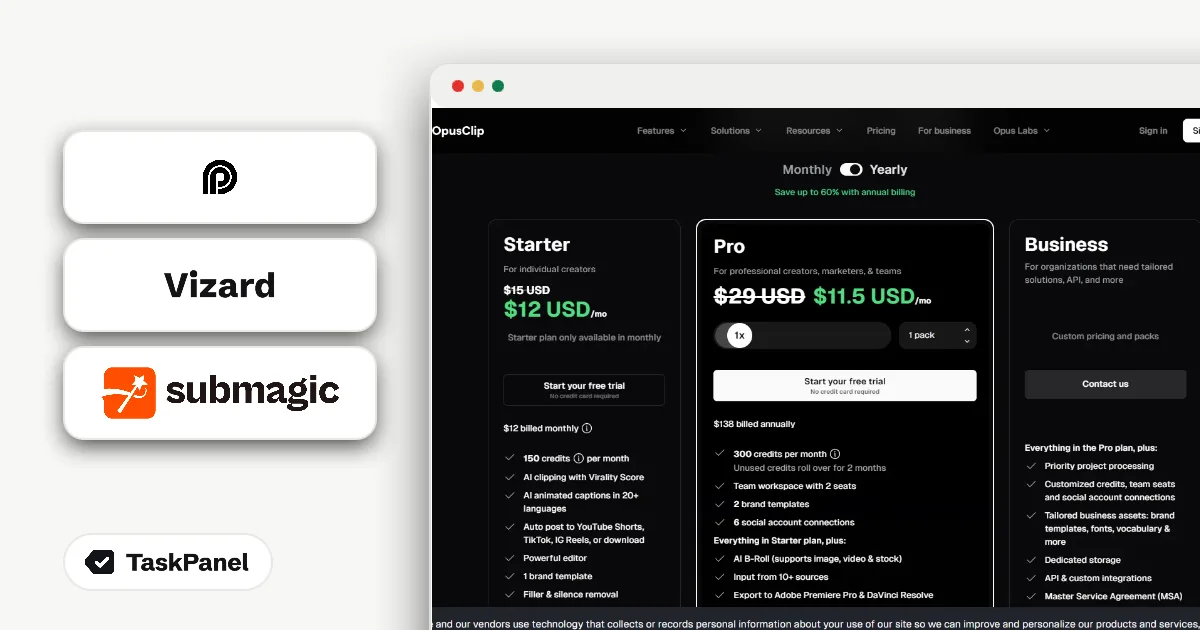
Free trial of Starter or Pro, no card needed
OpusClip also offers a free trial of its paid Starter or Pro plan with no credit card required. The pricing page does not say how long the trial lasts, so check the trial length in your account as soon as it starts.
- Go to the OpusClip pricing page and compare the Starter and Pro plans.
- Choose Starter or Pro and select the option to start your free trial.
- Sign up. No credit card is required for the trial.
- In your account, check how long the trial runs, since the pricing page does not say.
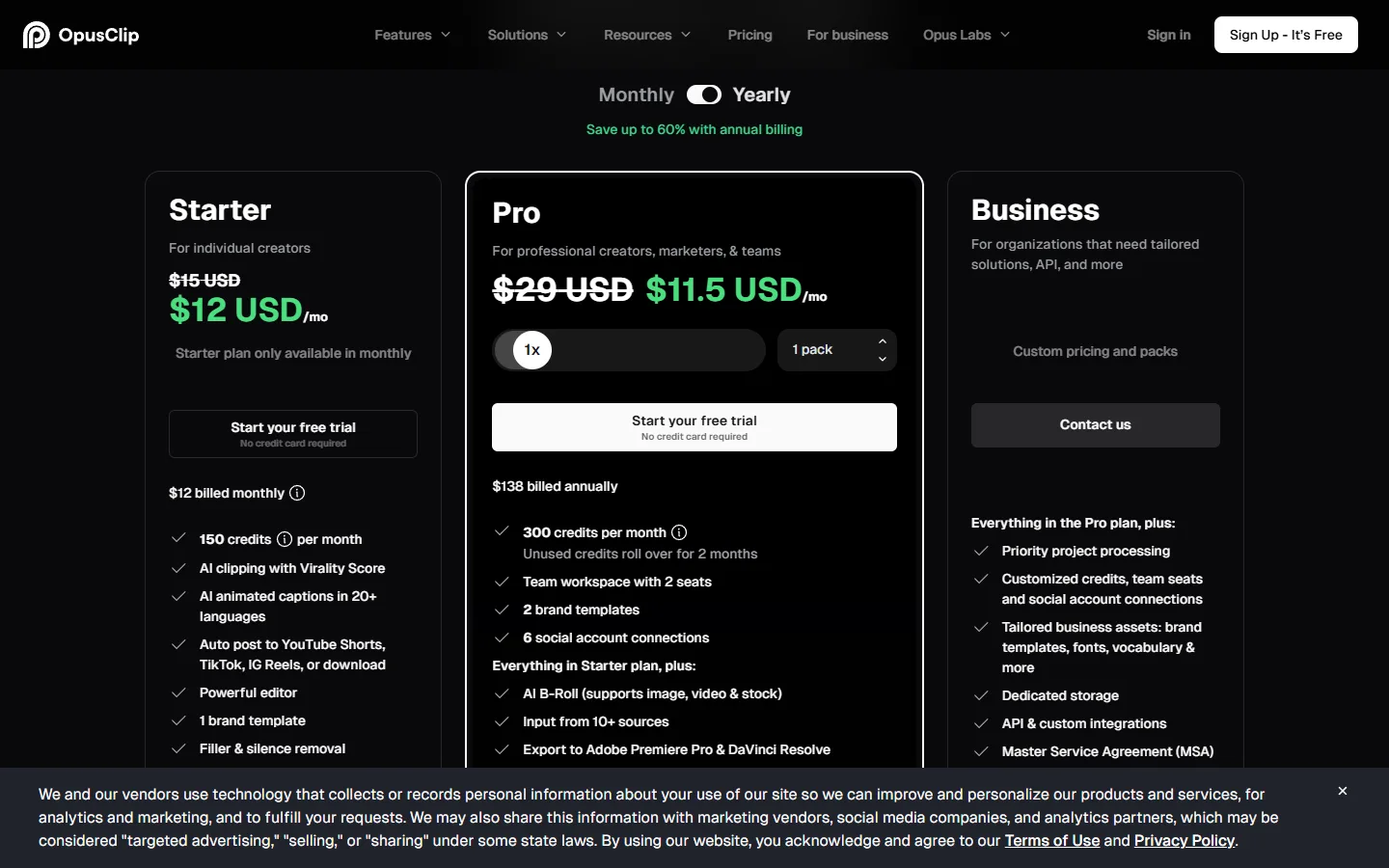
The trial is the sensible way to test the features the free plan leaves out, editing above all. Plan the trial around a real video you intend to publish, so the time is spent on work you would have done anyway.
Vizard
The Vizard free plan includes:
- 60 credits per month
- 720p exports, with a watermark
- 3 days of storage
On credits, Vizard matches OpusClip. The difference is export quality, which tops out at 720p on the free plan. For checking which moments the AI picks and how the captions read, 720p is enough. If you plan to post the free exports, play one on a phone at full screen before you decide it is good enough for your channel.
Storage is again limited to 3 days, so the same advice applies: process a video when you have time to review and download the results soon after. We do not have a verified Vizard discount or trial offer at the moment, so the free plan is the way in.
Submagic
Submagic works differently from the other two. It has no free plan. Its free trial lets you upload and edit 3 short videos, and downloading without a watermark requires a paid plan. Paid plans start from $12 a month, billed yearly.
Three videos is a small sample, so choose them carefully. Use clips that represent what you will actually post, such as a talking-head segment with your usual audio, rather than a quick test file. That way the trial tells you something about your real workflow.
Because the starting price is a yearly-billed rate, the first payment covers a whole year up front. If you are not sure you will keep posting short-form video for twelve months, check the billing options on Submagic's pricing page before you commit.
Free plans compared
| OpusClip | Vizard | Submagic | |
|---|---|---|---|
| Free plan | Yes, free forever | Yes | No, trial only |
| Monthly allowance | 60 credits | 60 credits | 3 short videos in the trial |
| Export quality | Up to 1080p | 720p | Not stated |
| Watermark | Yes | Yes | Yes, until you pay |
| How long clips are kept | 3 days to export | 3 days of storage | Not stated |
| Editing | Not on the free plan | Not stated | Included in the trial |
| Paid trial or entry price | Free trial of Starter or Pro, no card | No verified offer | From $12 a month, billed yearly |
How to test all three without wasting credits
The fairest test is to use the same source video everywhere. Pick one recording that represents your usual content, with normal audio and a normal length, and run it through each tool. Then compare the results side by side.
- Choose one source video you would genuinely like to turn into clips.
- Process it in OpusClip and Vizard on their free plans, and in Submagic as one of your 3 trial videos.
- Download the clips you would post within the 3-day window on OpusClip and Vizard.
- Count how many clips from each tool you would publish without changes, and how many need fixing.
- Only then decide whether a paid plan or the OpusClip trial is worth it.
While you compare, pay attention to the parts of your workflow that a pricing page cannot show you. How long does processing take for your typical video? Are the captions accurate for your accent and your subject? Do the clips start and end at natural points, or do they cut people off mid-sentence? Those answers differ from channel to channel, which is why your own test beats any review, including ours.
The count in step four matters more than any feature list. A tool that gives you five clips you would post as they are is worth more to you than one that produces twenty you need to rework.
Which one should you pick
If export quality on a free plan matters most, OpusClip is the one, with exports up to 1080p against Vizard's 720p. Both add a watermark, so neither is ideal for a polished brand channel without paying.
If you want to edit your clips before posting, the free plans are the wrong place to look. OpusClip's free plan has no editing, and Vizard's free plan description does not mention it. The OpusClip trial and the Submagic trial both let you try editing before paying.
If you already post short videos and want captions and effects added on top, Submagic's positioning as a short-form editor fits better, but budget for a paid plan from the start, since the trial covers only 3 videos.
And if you are simply curious whether AI clipping works for your podcast or channel at all, start with the OpusClip or Vizard free plan. It costs nothing, and you will know within a week.
Common mistakes and what happens after the trial
- Missing the 3-day window. OpusClip keeps free clips exportable for 3 days and Vizard stores them for 3 days. Download what you need right away.
- Posting watermarked clips to a brand account. All three tools put a watermark on free output. That is fine for testing and for personal accounts, less so for a client.
- Not checking the OpusClip trial length. The pricing page does not state it. Look it up in your account on day one and set a reminder before it ends.
- Spending Submagic's trial on throwaway files. You get 3 videos. Use them on content that tells you something.
- Burning credits on long test uploads. 60 credits a month is the allowance on both free plans. Test with one representative video before uploading your whole archive.
We keep the free plan details and any current offers on the tool pages for OpusClip, Vizard and Submagic, and recheck them against the official pricing pages.